Categories
Tags
-
#Image & Video FullScreen Background WordPress Plugin: A Developer's Deep Dive & Technical Review Creating an immersive first impression on a website often comes down to visuals. While clean
#minimalist designs have their place
#sometimes you need to hit the user with a full-blast
#edge-to-edge visual statement. This is where full-screen backgrounds come into play. They can set a mood
#showcase a product
#or create a cinematic experience that static layouts simply can't match. The challenge
#however
#has always been implementation. Wrestling with CSS
#ensuring responsiveness
#and fighting theme conflicts can turn a simple design idea into a development nightmare. This is the problem the Image&Video FullScreen Background WordPress Plugin aims to solve. In this technical review and guide
Archives
Nestora Real Estate Kit: A Developer's Hands-On Review and Hard
-
Nestora Real Estate Kit: A Developer's Hands-On Review and Hard-Truths Installation Guide
Building a functional, aesthetically pleasing real estate website is a deceptive challenge. On the surface, it's just listings and agent photos. Dig an inch deeper, and you’re wrestling with custom post types for properties, advanced search taxonomies, agent management, and lead-capture forms that need to be both elegant and aggressive. This complexity is why many real estate professionals and even some developers stumble, burning through budgets on custom builds or settling for clunky, outdated themes. It’s into this high-stakes environment that Envato Elements designers drop products like the Nestora - Real Estate & Property Elementor Template Kit, promising a fast track to a professional web presence. But does it deliver, or is it just another pretty face with a hollow core? We’re going to find out. This isn't a surface-level overview; it's a full teardown, from installation pitfalls to post-launch performance headaches.
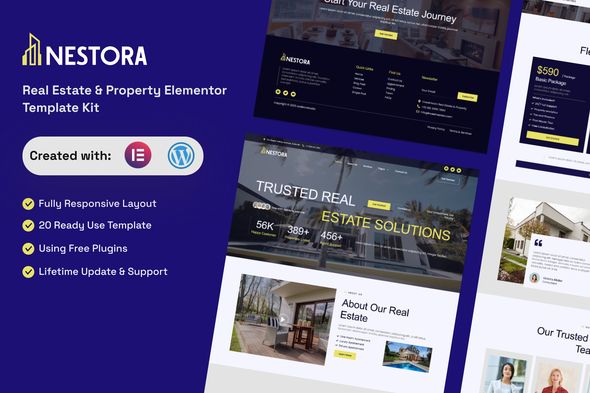
First Contact: What's Actually in the Box?
After acquiring the kit, you’re left with a single ZIP file. Unpacking it reveals the standard structure for an Elementor Template Kit: a handful of JSON files, a
manifest.jsonthat tells Elementor how to assemble the pieces, and maybe some documentation. The core of Nestora is a collection of pre-designed pages, sections, and popups, each a separate JSON template.The templates included cover the expected bases:
- Multiple Homepage layouts (a good sign of flexibility)
- About Us page
- Property Listing pages (archive/grid layouts)
- Single Property Detail page
- Agent Listing page
- Single Agent Profile page
- Blog Archive and Single Post layouts
- Contact Us page
- Essential Theme Builder parts: Header, Footer, 404 page
A Critical Eye on the Design
Aesthetically, Nestora plays it safe, which is a smart move for a commercial template. It employs a clean, modern design language characterized by generous whitespace, a muted color palette (easily adaptable), and strong, legible typography. The default font pairing—a sans-serif for headings and body—is professional and doesn't try to be overly artistic. This is a business tool, not an art project.
The layout feels spacious and high-end, leaning towards a premium or luxury property market. It's less suited for a high-volume, discount brokerage. The use of large hero images and well-composed content blocks gives it a polished, trustworthy feel. However, one critique is a slight tendency towards homogeneity. While clean, some of the internal page layouts can feel a bit repetitive. A developer will likely want to inject some unique block designs or custom CSS to give a client's site a more distinct brand identity.
The Price of Admission: Plugin Dependencies
This is where the marketing meets reality. A template kit is not a theme; it's a set of design instructions for a page builder. Nestora has its own list of required plugins to function as advertised. Before you import, you absolutely need:
- Elementor (Free): The core page builder. This is a given.
- Elementor Pro (Paid): This is the non-negotiable part. Nestora relies heavily on Pro widgets like the Posts widget (for listings), the Form widget, and most importantly, the Theme Builder functionality for creating global headers, footers, and archive templates. If you don't have Elementor Pro, this kit is effectively useless. This is a crucial "hidden cost" for anyone new to the ecosystem.
- ElementsKit Lite: A common third-party add-on. Often used for specific widgets the designer preferred over Elementor's native options. Be wary of these add-ons; they can introduce another layer of code and potential performance overhead.
The reliance on Elementor Pro isn't a flaw; it's a feature. It allows for a much more integrated and powerful site structure than a kit built only on the free version. The key takeaway is to factor the cost of an Elementor Pro license into the total project budget from day one.
The Installation Gauntlet: A Real-World Walkthrough
The five-minute install promised by many template providers is a myth. A professional setup requires a methodical process to avoid conflicts, errors, and hours of troubleshooting. Follow this battle-tested procedure, not the one on the sales page.
Phase 1: The Sterile Environment (Prerequisites)
Do not attempt to install this on an existing website bloated with old plugins and content. You are asking for a world of pain. Start with a completely fresh WordPress installation.
- Clean WordPress Install: Use the latest version.
- Install and Activate Required Plugins: Install Elementor, Elementor Pro, and any other required add-ons before you do anything else. Activate your Elementor Pro license.
- Check Server Vitals: This is a step amateurs skip. Check your hosting environment's PHP memory limit (
memory_limit) and file upload size (upload_max_filesize). A low memory limit (e.g., 64M) can cause the import process to fail silently. Aim for 256M or higher. Contact your host if you need this adjusted. - Install a Basic Theme: Use a lightweight, blank-slate theme like "Hello Elementor." Nestora is a kit, not a theme. It's designed to take over the site's design via the Elementor Theme Builder, so you want a theme that gets out of the way.
Phase 2: The Import Process
With the foundation laid, we can now import the kit itself. WordPress has a reputation for being simple, and marketplaces like gplpal provide access to a wide variety of tools, but proper procedure is still paramount.
- Navigate to the Kit Library: In your WordPress dashboard, go to
Templates > Kit Library. - Upload the Kit: In the top-right corner, you'll see an "Import Kit" button. Click it and select the main ZIP file you downloaded for Nestora.
- The Import Wizard: Elementor will read the
manifest.jsonand show you what's about to be imported—templates, site settings, content. It will also flag any missing plugin requirements you ignored in the previous phase. - First Pass Import: Proceed with the import. Let Elementor do its thing. This can take a few minutes. If it hangs for more than 5-10 minutes or throws a server error (like a 500 error), it's almost certainly due to the server resource limits mentioned earlier.
Phase 3: The Post-Import Triage
The import is done, but the job is not. Your site is currently a disorganized collection of templates. We need to give it structure.
- Don't Panic: Your homepage will probably look blank or show a list of recent posts. This is normal. The kit has been imported, but WordPress doesn't yet know how to use the pieces.
- Check Site Settings: Go to
Elementor > Toolsand click "Regenerate CSS & Data". Then, go to the editor for any page and check the global settings (via the hamburger menu in the top-left). Has the kit successfully imported Global Colors and Global Fonts? This is a critical check. If these are empty, something went wrong with the import, and the site's styling will be inconsistent. You may need to re-import the kit. - Verify Theme Builder Templates: Go to
Templates > Theme Builder. You should see the imported Header, Footer, and various Archive/Single templates. Check their "Display Conditions." The importer is supposed to set these, but it can fail. Ensure the Header is set to "Entire Site," the Footer is set to "Entire Site," the Blog Archive is set to "All Archives," etc. If these aren't set, you'll see the default theme's header and footer, not Nestora's. - Create and Assign Core Pages:
- Go to
Pages > Add New. Create a page named "Home." - Edit it with Elementor. Instead of building from scratch, click the grey folder icon to access your template library. Under the "My Templates" tab, you should find the imported "Homepage" template from Nestora. Insert it. Publish the page.
- Repeat this process for other key pages: About Us, Contact, etc.
- Finally, go to
Settings > Readingin WordPress. Set your "Homepage displays" to "A static page" and select the "Home" page you just created. This tells WordPress to use your newly designed page as the front door to the site.
- Go to
Completing this triage phase is what separates a successful install from a frustrating one. You now have a site that looks and feels like the demo, ready for content customization.
A Developer's Autopsy: Structure, Performance, and Code
Looking like the demo is one thing. Being a solid foundation for a real business is another. Let's put Nestora on the lift and inspect its engineering.
Template Organization and Reusability
The naming convention for the templates is logical and clear.
Homepage_v1,Single_Property,Archive_Agent—it's easy to find what you need. This is a small detail that speaks to the professionalism of the kit's author. Digging into the templates themselves, there's a good use of global widgets and styles. For instance, the call-to-action buttons seem to pull from the Global Color settings, meaning a client can rebrand the entire site's color scheme from one central panel. This is excellent practice.However, there's a moderate overuse of "inner section" widgets. While they allow for complex layouts, every inner section adds another layer of
divs to the Document Object Model (DOM). A page with too many nested elements becomes heavier and slower for browsers to render. A skilled developer using this kit as a base would likely go through and refactor some sections, using more advanced CSS Flexbox or Grid controls within a single section to achieve the same layout with cleaner, leaner code.The Responsiveness Reality Check
I tested the imported templates across standard breakpoints: desktop, tablet (1024px), and mobile (480px). The results are decent, but not perfect.
- Desktop: Flawless. The layouts are exactly as advertised.
- Tablet: Mostly good. There are a few instances of text wrapping awkwardly or images not scaling perfectly. For example, a three-column layout of property features might stack into a single clunky column instead of a more elegant two-column-then-one-column layout. These are minor tweaks a developer can fix in minutes but would frustrate a beginner.
- Mobile: Here's where more attention is needed. While nothing is outright "broken," the mobile experience feels like an afterthought in some places. Font sizes for headings are sometimes too large, forcing excessive scrolling. Spacing and padding can feel inconsistent. The kit relies heavily on Elementor's default stacking behavior, without much custom refinement for the mobile view. It's a passing grade, but not an A+. Expect to spend a couple of hours fine-tuning every single page for a truly premium mobile experience.
Performance: The Inevitable Elementor Conversation
Elementor sites can be fast, but they are not fast by default. A template kit like Nestora, built for visual appeal and flexibility, often prioritizes design over raw performance. Running the imported homepage through GTmetrix without any optimization reveals a predictable story: a large page size, a high number of DOM elements, and multiple CSS/JS requests from the various plugins.
A developer's post-build checklist would have to include:
- Aggressive Image Optimization: The demo images are large. All images must be compressed and served in next-gen formats like WebP.
- Caching and Asset Optimization: A premium caching plugin (like WP Rocket or FlyingPress) is not optional, it's mandatory. It's needed to minify and combine CSS/JS files and implement features like lazy loading for images and videos.
- Icon Management: The kit likely loads the entire Font Awesome library, even if it only uses 20 icons. A performance plugin or custom code should be used to disable unused icons or load them more efficiently.
- Reviewing the Widgets: On pages where performance is critical, consider replacing heavy, multi-functional widgets with simpler, native Elementor widgets if possible.
Nestora doesn't create performance problems; it simply operates within the standard Elementor paradigm. It delivers a visually rich experience, and the trade-off for that is a developer's responsibility to optimize the final product heavily before launch.
The Missing Engine: Listings, Search, and Functionality
This is the most critical concept for a non-developer to understand. Nestora is the car's body, not the engine. It provides a beautiful, static design for how property listings should look, but it does not provide the system for managing those properties.
Powering the Property Listings
The "Property Listings" page is likely built with Elementor Pro's Posts widget, configured to display standard WordPress posts. To make this a real estate site, you must replace this with a proper Custom Post Type (CPT) for "Properties."
Your workflow would be:
- Use a CPT Plugin: Install a plugin like Advanced Custom Fields (ACF) Pro, Toolset, or JetEngine.
- Create the "Property" CPT: Define a new post type called "Property."
- Add Custom Fields: This is where you add the data fields: Price, Bedrooms, Bathrooms, Square Footage, Location (Address, City, ZIP), Property Status (For Sale, For Rent), etc.
- Populate with Listings: Add your properties as new "Property" posts, filling in all the custom fields.
- Re-wire the Templates: Go back to the
Single_PropertyandArchive_Propertytemplates in Elementor. Delete the placeholder widgets and replace them with dynamic ones that pull from your new CPT. For the archive, you'll use a Listing Grid widget (from JetEngine, for example). For the single page, you'll use Dynamic Field widgets to pull and display the price, bedrooms, and other data from the custom fields you created.
This process of creating the backend and wiring it to the frontend template is where the real development work lies. The template kit gives you a massive head start on the design, but the core functionality must be built by you.
Implementing Search and Filtering
Similarly, the beautiful search bar on the homepage is just a design. It's likely a collection of form fields from the Form widget. To make it a functional, searchable filter, you need another plugin like JetSmartFilters or FacetWP. You would build a filter set in that plugin (e.g., filter by location, price range, number of bedrooms) and then map it to the Listing Grid on your property archive page. This is an intermediate-level WordPress task.
The Final Verdict: A Tool for a Craftsman, Not a Magic Wand
So, is the Nestora - Real Estate & Property Elementor Template Kit a valuable asset? The answer is a resounding "it depends on who's asking."
For the DIY Real Estate Agent with no web development experience: This is a dangerous purchase. You might get through the import process, but you will hit a hard wall when it comes to implementing the actual property management and search functionality. You will be left with a beautiful but hollow shell. You would be better off looking for simpler, all-in-one theme solutions or exploring the world of Free download WordPress themes to learn the basics first.
For the professional WordPress developer or agency: This kit is an excellent accelerator. It can easily save 20-30 hours of design and layout work on a project. It provides a professionally designed, well-structured, and easily brandable foundation. A developer can confidently purchase this kit, knowing they will handle the backend CPT/ACF integration, perform the necessary mobile and performance optimizations, and deliver a high-value product to their client on a tighter deadline and budget.
Pros:
- Clean, professional, and modern design suitable for a premium market.
- Well-organized and logically named templates.
- Good use of Elementor Pro's global settings for easy rebranding.
- Comprehensive set of templates covers all essential pages for a real estate site.
Cons:
- Mobile responsiveness requires manual fine-tuning.
- Tendency to create a slightly heavy DOM with nested sections.
- Absolutely requires Elementor Pro, adding to the project cost.
- Provides zero backend functionality (as expected, but crucial for beginners to understand).
Ultimately, Nestora is a sharp, high-quality chisel. In the hands of a skilled craftsman, it can be used to carve out a beautiful and functional product efficiently. In the hands of a novice, it's more likely to cause frustration. If you are a developer tasked with building a real estate site on the Elementor stack, Nestora is a smart investment that buys you time and a polished starting point. Just be prepared to roll up your sleeves and build the engine that makes the whole thing run.