Categories
Tags
-
#Image & Video FullScreen Background WordPress Plugin: A Developer's Deep Dive & Technical Review Creating an immersive first impression on a website often comes down to visuals. While clean
#minimalist designs have their place
#sometimes you need to hit the user with a full-blast
#edge-to-edge visual statement. This is where full-screen backgrounds come into play. They can set a mood
#showcase a product
#or create a cinematic experience that static layouts simply can't match. The challenge
#however
#has always been implementation. Wrestling with CSS
#ensuring responsiveness
#and fighting theme conflicts can turn a simple design idea into a development nightmare. This is the problem the Image&Video FullScreen Background WordPress Plugin aims to solve. In this technical review and guide
Archives
Brain Games (6 in 1) Technical Deep Dive: A Developer's Review
-
Brain Games (6 in 1) Technical Deep Dive: A Developer's Review and Integration Guide
Adding interactive elements to a website can be a significant undertaking. While custom development offers ultimate control, the time and budget aren't always available. This is where pre-packaged solutions come into play, promising a quick path to user engagement. Today, we're tearing down one such package: the Brain Games (6 in 1) - HTML5 Educational games bundle. The pitch is simple: a collection of six educational games, built with web standards, ready to be dropped into any website. As developers, we know "ready to be dropped in" can mean anything from a five-minute iframe job to a weekend-long dependency nightmare. This review and guide will cut through the marketing copy to give you a real-world technical assessment and a practical roadmap for implementation.
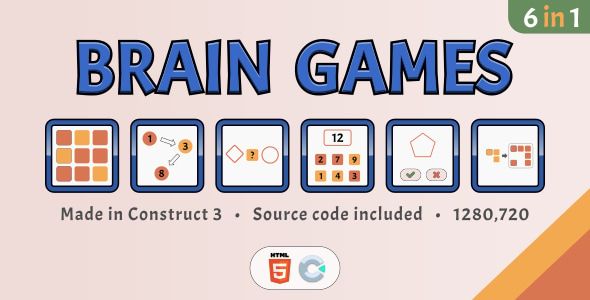
First Impressions: Unzipping the Package
Upon downloading and extracting the archive, the initial organization is straightforward, which is a good sign. You're not met with a cryptic mess of files. The root directory contains separate folders for each of the six games, a general `_common` folder, and a top-level `index.html` that acts as a menu to launch each game. This is a logical structure for a standalone presentation.
The six games included are:
- Guess The Word: A "Hangman" style game.
- Image Puzzle: A classic sliding tile puzzle.
- Math Challenge: Timed, simple arithmetic problems.
- Memory Match: The standard card-flipping memory game.
- Trivia Quiz: A multiple-choice quiz game.
- Word Search: The familiar grid-based word-finding puzzle.
Digging into a specific game's folder, such as `math_challenge`, reveals a familiar structure for anyone who's worked with packaged HTML5 content. You'll find an `index.html`, a `css` folder, a `js` folder, and an `assets` folder. The `_common` directory appears to hold shared resources, likely for the main menu screen, but the games themselves seem to be self-contained entities. This encapsulation is a massive plus, as it immediately suggests that you can deploy a single game without needing the entire package, and it reduces the risk of cross-game script or style conflicts.
A Technical Review for Developers
Let's move beyond the file list and get our hands dirty. A pretty folder structure means nothing if the code inside is a tangled mess. We'll evaluate this package based on the criteria that matter to a developer: code quality, ease of customization, and performance.
Code Quality and Architecture
Opening up the JavaScript files reveals that the entire suite is built on the CreateJS library. For those unfamiliar, CreateJS is a suite of JavaScript libraries (EaselJS, TweenJS, SoundJS, PreloadJS) that provides a Flash-like API for working with the HTML5 Canvas. This is a critical piece of information. These games are not DOM-based; they are rendered onto a single
<canvas>element.The Good: Using a canvas and a library like CreateJS provides excellent control over animation and cross-browser consistency in rendering. Complex visual effects, animations, and transitions are much easier to implement and manage than with DOM manipulation, especially for games. The code, while not necessarily following modern ES6 module patterns, is generally structured into logical objects or prototypes (e.g., `CMain`, `CGame`, `CInterface`). This makes it readable enough to trace the game loop, event handling, and UI updates.
The Not-So-Good: The reliance on CreateJS and a canvas-first approach introduces a layer of abstraction. You're not just manipulating HTML elements with CSS anymore. If you want to change something visually, you're not going to just pop open the dev tools, find a class, and write a CSS override. You'll need to dig into the JavaScript, find the drawing instructions in EaselJS, and modify object properties like position, color, or alpha. This can significantly steepen the learning curve for developers unfamiliar with canvas-based rendering.
The code is also heavily reliant on a global scope, with a central game object often attached to the `window`. While common in older game architectures, this is a practice modern JavaScript development actively avoids to prevent conflicts. It's a key reason why using an iframe for integration will be the recommended path for most users.
The CSS is minimal, mostly used to style the page holding the canvas and any surrounding HTML UI elements. The games themselves are styled almost entirely through JavaScript. This is neither good nor bad, but a fundamental aspect of the canvas architecture you must accept.
Customization and Extensibility
This is where a pre-built package lives or dies. If you can't re-brand it and modify the content, it's virtually useless. The Brain Games package offers a reasonable, if somewhat developer-centric, level of customizability.
Look and Feel: Changing colors, fonts, and logos is not a simple CSS edit. Most visual properties are hard-coded within the JavaScript files. For example, in `CInterface.js` or `CGame.js`, you'll find lines that define text colors, button colors, and background fills.
var oScoreText = new createjs.Text("SCORE: 0","40px my_game_font", "#ffffff");To change that text color, you need to find this line and change `"#ffffff"` to your desired hex code. To change the font, you need to ensure the font is loaded (typically via CSS `@font-face`) and then update the string `"40px my_game_font"`. This process is tedious and requires careful code editing. There is no central `theme.css` or `config.json` for styling, which is a missed opportunity for improving usability.Game Content: Fortunately, modifying the actual game content is much easier. The data is generally stored in arrays or simple objects at the top of the main game logic file. For the Trivia Quiz, you'll find a file like `CLang.js` or within `CGame.js` an array that looks something like this:
var TEXT_GAMEOVER  = "GAME OVER";
var TEXT_SCORE     = "SCORE";
// ... and so on
For the questions themselves, you'll find a structure for defining the question, the list of answers, and the index of the correct answer. Modifying this data is a straightforward copy-paste-and-edit job. The same logic applies to the Word Search (editing the word list) and Guess The Word. This is a saving grace, as it means a non-developer with careful instructions could potentially update game content.
Localization: The games handle text through a settings file, often named `CLang.js`. This file contains all the user-facing strings ("SCORE", "LEVEL", "GAME OVER", etc.). To translate a game, you simply need to duplicate this file, translate the string values, and then modify the main `index.html` to load your new language file instead of the default one. It's a basic but effective system for localization.
Gameplay and User Experience (from a Technical POV)
Responsiveness: The games handle responsiveness by scaling the entire canvas. A script in the main `index.html` file listens for window resize events and then applies a CSS `transform: scale()` to the canvas element, along with adjusting its margins to keep it centered. This is a common and pragmatic approach for canvas-based games. It ensures the layout never "breaks" in the way a DOM-based layout can. However, it has a major drawback: on very wide or very tall screens, you get large empty bars (letterboxing). More importantly, as the canvas scales down for small mobile screens, interactive elements like buttons and text also shrink, which can lead to usability issues if they become too small to read or tap accurately. It's not true "responsive design" but rather "scalable design."
Performance: Performance is generally good on modern desktops and reasonably powerful mobile devices. CreateJS is efficient, and the games are not graphically intensive. Assets are preloaded with a loading bar, which prevents the game from starting before all images and sounds are ready. Most graphics are combined into spritesheets, which is a best practice that reduces HTTP requests and improves rendering performance. However, be aware that running a canvas animation loop, even a simple one, continuously consumes CPU cycles. On a content-heavy page, embedding multiple instances of these games or running one on a low-end device could lead to noticeable battery drain and potential jank in other parts of the page.
The Installation and Integration Guide
Now for the practical part. You've assessed the code and decided to use one or more of the games. Here's how to get it running, from a local test environment to a live WordPress site.
Prerequisites: What You'll Need
- A Local Web Server: You cannot simply open the `index.html` file in your browser from your local file system (e.g., `file:///C:/Users/...`). Modern browsers impose strict security restrictions (CORS policy) that prevent JavaScript from loading other files (like game assets or JSON data) from the local file system. You need a real web server. Don't panic; this is easy to set up.
- If you have Python installed: This is the simplest method.
- If you have Node.js installed: The `http-server` package is excellent.
- If you use VS Code: The "Live Server" extension is a one-click solution.
- A Code Editor: Something like VS Code, Sublime Text, or Atom for editing configuration and code files.
- Basic Web Knowledge: You should be comfortable with basic HTML and know how to find your way around a file directory.
Step 1: Local Setup and Testing
Let's get a game running on your machine. We'll use the Math Challenge game as our example.
- Download the "Brain Games" package and unzip it into a folder, for example, `C:\projects\brain-games\`.
- Open your terminal or command prompt.
- Navigate into the game's specific directory. It's best to test one game at a time.
cd C:\projects\brain-games\math_challenge - Start your local web server.
- Python 3:
python -m http.server 8000 - Node.js (after `npm install -g http-server`):
http-server -p 8000
- Python 3:
- Open your web browser and navigate to http://localhost:8000.
- You should see the Math Challenge game load and be fully playable. If it works here, it will work on a live web server.
Step 2: Basic Customization
Before uploading, let's make a simple change. We'll change the game's orientation from landscape to portrait, a common requirement.
- In the `math_challenge` folder, open the `js` subdirectory.
- Find the `CMain.js` file and open it in your code editor.
- Near the top of the file, you will likely find a configuration block. Look for a line that defines the orientation. It might look like this:
var oMain = new CMain({ ..., screen_orientation: 'landscape', ... }); - Change `'landscape'` to `'portrait'`.
var oMain = new CMain({ ..., screen_orientation: 'portrait', ... }); - Save the file. Go back to your browser (where the local server is running) and refresh the page. The game should now force a portrait orientation. This same process can be used to disable sound, change initial settings, and more, by exploring the options available in that `CMain` constructor.
Step 3: Integrating into an Existing Website (WordPress Focus)
This is the final and most critical step. There are two primary methods, each with significant trade-offs.
Method A: The Iframe Approach (Simple, Safe, Recommended)
An iframe is essentially a window into another webpage that you embed within your own. This isolates the game's scripts and styles from your main site, preventing conflicts. This is the best approach for 95% of use cases.
- Upload the Game Files: Using an FTP client or your hosting provider's cPanel File Manager, upload the entire folder for the game you want to use (e.g., `math_challenge`) to your web server. A good place is the `wp-content/uploads` directory, perhaps in a new subfolder you create called `games`. The final path would be something like `.../wp-content/uploads/games/math_challenge/`.
- Get the Direct URL: Find the direct URL to the game's `index.html`. It will be `https://yourdomain.com/wp-content/uploads/games/math_challenge/index.html`. Test this URL directly in your browser to ensure it loads correctly.
- Embed in WordPress:
- Edit the Page or Post where you want to add the game.
- Add a "Custom HTML" block.
- Insert the following iframe code, replacing the `src` with your URL:
<iframe src="https://yourdomain.com/wp-content/uploads/games/math_challenge/index.html" width="100%" height="600" style="border:none;"></iframe> - Adjust the `height` attribute as needed to fit the game without excessive scrolling. Setting width to `100%` will make it responsive within its container.
Pros: Extremely easy, total isolation (no JS/CSS conflicts).
Cons: Can feel less "native" to the page. Making the iframe height responsive can require extra JavaScript if you want to avoid fixed heights.Method B: Direct Embedding (Advanced, Risky)
This method involves integrating the game's code directly into your page's HTML. Do not attempt this unless you are a confident developer. It is very likely to cause conflicts, especially with WordPress themes and plugins that rely on different versions of jQuery or other libraries.
The general idea would be to:
- Upload the game's `js`, `css`, and `assets` folders.
- Copy the contents of the game's `` into your page's HTML.
- Copy the `` and `