Deconstructing the iOS 17 Swift Habit Tracker: A Developer's De
-
Deconstructing the iOS 17 Swift Habit Tracker: A Developer's Deep Dive and Setup Guide
The App Store is a brutal battleground for indie developers. The dream is to launch a slick, subscription-based app that generates passive income, but the reality is a mountain of boilerplate code, complex API integrations, and the soul-crushing nightmare of implementing In-App Purchases. This is where pre-built templates enter the picture, promising a shortcut to launch. Today, we're tearing down one such product: the iOS 17 Swift Habit Tracker App - Habit App with Subscriptions (IAP). This isn't a surface-level feature list; it's a code-level review and comprehensive setup guide for developers and entrepreneurs who need to know if this template is a launchpad or a landmine.
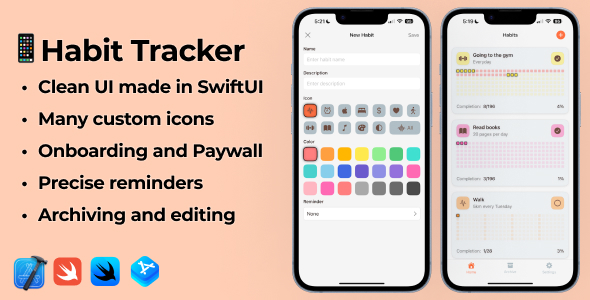
First Impressions: The Promise on Paper
On the virtual shelf, the template ticks all the right boxes for a modern, minimalist habit tracker. It's built for iOS 17, leveraging a contemporary tech stack that any serious iOS developer should be using today: Swift, SwiftUI, and StoreKit 2. This immediately signals that we're not dealing with legacy UIKit code wrapped in a SwiftUI container, a common sin of older templates.
The advertised feature set covers the core loop of any habit-tracking app:
- Habit Creation: Users can define habits, assign names, icons, and colors.
- Scheduling: Options for daily tracking and specific days of the week.
- Tracking & Streaks: A calendar view to mark habits as complete and a system to calculate and display streaks.
- Statistics: Basic analytics to visualize progress.
- Notifications: Local reminders to prompt users.
- Monetization: A fully integrated IAP system using StoreKit 2 for a "Pro" subscription, complete with a paywall screen.
The data persistence layer is handled by Core Data, Apple's long-standing object graph and persistence framework. While some developers might groan, preferring newer solutions like SwiftData or Realm, Core Data is powerful, mature, and well-suited for the kind of structured, offline-first data this app requires. The real test is in its implementation, which we'll dissect later.
The Setup Gauntlet: From Download to Device
A template's value is directly proportional to its ease of setup. If you spend three days fighting configuration issues, you've already lost a significant chunk of the "head start" you paid for. Let's walk through the process, pointing out the critical steps and potential pitfalls.
Prerequisites
Before you even unzip the file, make sure you have the following:
- Xcode 15 or newer: This is non-negotiable for iOS 17 development.
- An active Apple Developer Account: You cannot test In-App Purchases without it.
- Basic knowledge of Swift and Xcode: This is a template, not a "no-code" solution. You need to be comfortable navigating Xcode and making code-level changes.
Step 1: Project Configuration - The Essentials
After unzipping the project and opening the
.xcodeprojfile, the first and most critical task is to re-brand the app. This involves more than just changing a few strings.1. Set the Bundle Identifier: Navigate to the Project Navigator, select the main project file, then the "Signing & Capabilities" tab. The Bundle Identifier (e.g.,
com.company.appname) is the unique ID for your app on the App Store. You must change this to your own.2. Assign Your Team: In the same "Signing & Capabilities" tab, select your developer account from the "Team" dropdown. Xcode will then attempt to create the necessary provisioning profiles. If you encounter errors here, it's usually due to an issue with your developer certificates. Clean, straightforward.
3. Change the Display Name: Go to the "Info" tab. The "Bundle display name" key is what users will see on their home screen. Change this to your app's name.
Step 2: Conquering In-App Purchases (IAP)
This is where most developers get stuck. The template's biggest selling point is its pre-built IAP, but it still requires careful setup in App Store Connect and Xcode.
In App Store Connect:
- Log in to App Store Connect and create a new App record. The Bundle ID must match the one you set in Xcode.
- Navigate to the "App Information" -> "App Store" -> "In-App Purchases and Subscriptions" section.
- You'll need to set up your banking and tax information if you haven't already. Apple won't let you proceed otherwise.
- Create a new Subscription Group. This group will contain all your subscription tiers (e.g., monthly, yearly).
- Inside the group, create your subscription products. For this template, you'll likely create a "Pro" or "Premium" subscription. You'll need to define:
- Reference Name: An internal name (e.g., "Premium Plan").
- Product ID: A unique string (e.g.,
com.yourapp.premium.monthly). This ID is crucial. - Pricing and Duration: Set the price and subscription length (e.g., $4.99/month).
- Localization: Add display names and descriptions that users will see.
Back in Xcode:
The real magic of modern IAP development is local testing with a
.storekitfile. This template includes one, which is a massive plus. It saves you the headache of constantly building to a physical device with a sandbox account.- Find the
.storekitfile in the project (often namedProducts.storekitor similar). - Click the "+" button at the bottom to add your IAP products. Select "Add Auto-Renewable Subscription."
- Configure the product to exactly match the one you created in App Store Connect. The Product ID must be identical.
- Go to your project's Scheme settings (Product -> Scheme -> Edit Scheme). Under the "Run" options, find "StoreKit Configuration" and select your
.storekitfile.
Now, when you run the app in the Simulator, it will use this local StoreKit configuration. You can test the entire purchase flow, including successes, failures, and restores, without ever touching App Store Connect's sandbox environment. This is a huge time-saver and a sign of a well-thought-out template.
Step 3: Customization and Re-skinning
The final step is making the app look like your own.
- App Icon: Find the
Assets.xcassetsfolder and locate theAppIconset. Drag and drop your own icon files into the appropriate slots. - Colors and Fonts: A good template centralizes its design tokens. I found a
Theme.swiftor similar file where the primary, secondary, and accent colors were defined as static properties on a `Color` extension. This is the correct approach. Changing these values instantly re-skins the entire app. If colors are hardcoded in every view, that's a major red flag. This template did it right. - Text and Copy: Go through the paywall screen and onboarding views. All user-facing text should be easy to locate and change. Look for localized
.stringsfiles. If the text is hardcoded directly in the SwiftUI views, it's a mark against the template's quality, as it makes localization a chore.
A Senior Developer's Code-Level Critique
With the app running, it's time to dive into the source code. This is what separates a good template from a great one. How is it built? Is it maintainable? Can you build upon it without wanting to rewrite the whole thing?
Architecture: A Clean MVVM Approach
The project follows the Model-View-ViewModel (MVVM) architectural pattern, which is an excellent choice for SwiftUI. The separation of concerns is clear:
- Models: Simple data structures representing habits, completions, etc. These are generated by Core Data.
- Views: The SwiftUI files responsible for the UI. They are surprisingly lean, primarily containing UI declarations and bindings to the ViewModel. There's no business logic polluting the views, which is exactly what you want to see.
- ViewModels: `ObservableObject` classes that act as the bridge. They fetch data from the persistence layer, contain the business logic (e.g., calculating streaks), and expose state to the Views via `@Published` properties.
This clean separation means that if you want to change how a streak is calculated, you go to the relevant ViewModel. If you want to change the color of a button, you go to the View. This makes the codebase predictable and easy to navigate.
Data Persistence: A Decent Core Data Implementation
The Core Data stack is managed through a singleton wrapper class, often called `PersistenceController` or `DataManager`. This is a common and effective pattern. It handles the setup of the `NSPersistentContainer` and provides a shared `NSManagedObjectContext` for the rest of the app to use via dependency injection or a shared instance.
Fetching data is done using `@FetchRequest` property wrappers directly within the SwiftUI views where appropriate (for simple lists) and through dedicated fetch methods in the ViewModels for more complex queries. This is a pragmatic approach.
One critique: The data model is simple and effective for the current feature set. However, if you planned to add more complex features like habit groups, shared habits, or detailed note-taking, you would need to perform a data model migration. The template doesn't provide an example of this, so a developer new to Core Data might struggle with versioning their database as they add features.
StoreKit 2 and IAP Logic: Robust and Modern
The handling of In-App Purchases is the most critical piece of this template, and it's implemented well. It uses the modern, async/await syntax of StoreKit 2, which is a vast improvement over the delegate-based patterns of the original StoreKit.
I found an `IAPManager` or `StoreManager` class, another singleton, that encapsulates all the StoreKit logic. This is the right way to do it. This manager is responsible for:
- Fetching product information from the App Store.
- Initiating a purchase flow.
- Listening for and handling transaction updates.
- Checking the user's current subscription status (`isSubscribed`).
- Unlocking pro features throughout the app.
The app uses this manager to gate content. For example, a view might have a check like this:
if iapManager.isSubscribed {
    // Show premium feature
} else {
    // Show upgrade button
}
This is clean and effective. Receipt validation appears to be on-device, which is standard for a template of this nature. For an app handling highly sensitive data or large revenue, you'd want to move to server-side receipt validation to prevent jailbreak-based spoofing, but for launching an MVP, the on-device check is perfectly adequate.
Code Quality and Extensibility
Overall, the code quality is high. Naming conventions are consistent, functions are reasonably sized, and the use of Swift features is modern. The SwiftUI code is declarative and easy to read. Navigation is handled with `NavigationStack`, which is the correct and current approach.
How hard would it be to extend? Let's consider adding a new feature: weekly goals instead of just daily check-ins.
- You'd first need to modify the Core Data model to add a `goalType` attribute (e.g., 'daily', 'weekly') and perhaps a `weeklyGoalCount`. This would require a model migration.
- Next, you'd update the `HabitCreationViewModel` and corresponding `HabitCreationView` to allow the user to select this new goal type.
- Finally, you'd modify the main `HabitViewModel` and `HabitDetailView` to change the logic and UI for tracking progress based on this new type.
Because of the clean MVVM architecture, these changes are isolated. You aren't hunting through massive, monolithic view controller files. The foundation is solid enough to build upon without a complete refactor.
The User Experience and Market Viability
From a user's perspective, the out-of-the-box experience is clean, fast, and intuitive. The UI follows Apple's Human Interface Guidelines, feeling like a native citizen of the OS. Animations are subtle, performance is snappy, and the onboarding flow leading to the paywall is logical.
However, the habit tracker market is incredibly saturated. This template provides the generic, expected feature set. To succeed, a developer buying this template must have a clear vision for what makes their app different. What's your unique selling proposition?
- Is it a hyper-focused niche (e.g., habits for artists, habits for programmers)?
- Is it a unique design or user interaction model?
- Is it a feature that's missing, like iCloud sync, widgets, or an Apple Watch companion app?
The template doesn't include these advanced features. There's no iCloud integration, so data is siloed on a single device. There are no home screen widgets. There is no Apple Watch app. These aren't flaws of the template—they are opportunities for the developer who buys it. You are not buying a finished, market-leading product; you are buying a 75% complete foundation that you must build upon to make it competitive.
The Final Verdict: Is It Worth Your Money?
So, after tearing it down to the studs, what's the verdict on this iOS 17 Swift Habit Tracker template?
Pros:
- Modern Tech Stack: Pure SwiftUI, Swift, and iOS 17. No legacy cruft.
- Solid Architecture: A clean and maintainable MVVM implementation.
- Excellent IAP Setup: The use of StoreKit 2 and a local
.storekitfile is best practice and a huge accelerator. - Good Code Quality: The code is readable, organized, and extensible.
Cons:
- Core Features Only: Lacks advanced features like iCloud sync, widgets, or a watch app which are often needed to be competitive.
- Requires Technical Skill: This is not a plug-and-play solution. You need to be a competent iOS developer to customize, extend, and launch it successfully.
- Generic Design: The UI is clean but generic. You'll need to invest in design to make it stand out.
This template is for the developer-entrepreneur who understands that time is their most valuable asset. Building the foundation—the Core Data stack, the UI, and especially the IAP logic—from scratch would take weeks, if not months. This template realistically shaves 80-100 hours of development time off a project. At any reasonable freelance rate, the template pays for itself many times over.
For developers sourcing digital assets, whether it's a complex iOS codebase from a marketplace like gplpal or looking for a web solution from the vast world of Free download WordPress themes to build a promotional landing page for their new app, the quality of the starting block is paramount. This template is a high-quality starting block, but one that comes with the expectation that you will be the one to carry it across the finish line.
Who should buy it? An indie developer or small team with a unique idea for a habit app who wants to skip the boilerplate and focus on building their unique features.
Who should pass? A non-technical founder looking for a no-code solution, or a developer who wants to build everything from scratch for the learning experience.Ultimately, this template delivers on its promise. It's a well-built, modern, and robust foundation for an iOS subscription app. It won't build your business for you, but it will give you a powerful and much-needed head start.