Coursey Elementor Kit: A Developer's Deep Dive and No-Nonsense
-
Coursey Elementor Kit: A Developer's Deep Dive and No-Nonsense Installation Guide
The market for online learning platforms is relentless. Everyone from solo entrepreneurs to established institutions needs a digital home for their content, and building one from scratch is a significant time and resource drain. This is the exact problem that pre-built solutions aim to solve. Today, we're tearing down the Coursey - Online Courses Elementor Template Kit. It promises a fast, professional foundation for an e-learning website built on WordPress and Elementor. My job is to determine if that promise holds up under a professional lens, moving beyond the marketing gloss to see how it performs in a real-world development workflow.
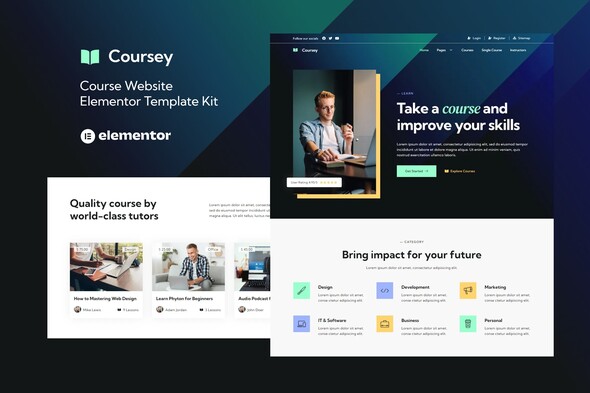
An Elementor Template Kit isn't a theme. Let's get that clear from the start. It’s a collection of pre-designed page layouts, sections, and site settings (like colors and fonts) that you import directly into Elementor. The goal is rapid deployment, allowing you to assemble a visually cohesive website without designing every single element from a blank canvas. Coursey is purpose-built for this, targeting anyone launching online courses, tutorials, or educational programs. The question isn't just "does it look good?" but rather "is it built well, is it flexible, and will it cause headaches down the road?"
First Impressions: A Clean, if Unadventurous, Design
Loading up the Coursey demo, the initial impression is one of professional competence. The design language is clean, modern, and safe. It employs a generous amount of white space, a reserved color palette dominated by a corporate-friendly blue, and crisp, legible typography—likely a popular Google Font like Poppins or Inter. This is not a design that will win avant-garde awards, but it's not supposed to. It’s designed to be trustworthy, easy to navigate, and to put the focus squarely on the course content.
The user interface elements are exactly what you'd expect: prominent hero sections with clear calls-to-action (CTAs), card-based layouts for course listings, testimonial sliders, and instructor profile sections. From a User Experience (UX) perspective, the flow is logical. A new visitor can immediately understand the site's purpose, browse courses, and find pricing or enrollment information without friction. It follows established web conventions, which is a strength for a site where clarity is paramount.
My main critique of the design is its slight genericness. It looks like many other tech or SaaS websites from the last few years. While this makes it a versatile starting point, it lacks a strong, memorable identity out of the box. Be prepared to inject your own brand's personality through imagery, iconography, and copy. This is less of a flaw and more of a reality with template-based design; it provides the skeleton, but you have to provide the soul.
Under the Hood: A Technical Breakdown of the Templates
A pretty design can hide a messy structure. The real value of an Elementor kit is in its construction. I examined the structure of the key templates to see if they adhere to good development practices.
Dependencies and Requirements
This is the first place a developer should look. Coursey requires three key plugins to function as intended:
- Elementor (Free): The core page builder. This is a given.
- Elementor Pro: A hard requirement. The kit relies heavily on Pro features for its header, footer, archive templates, and likely some of its more advanced widgets. If you don't have Pro, this kit is a non-starter.
- ElementsKit Lite: This is a third-party add-on for Elementor. Coursey uses it for specific widgets or functionalities not found in Elementor Pro. The inclusion of a "Lite" plugin is a double-edged sword. On one hand, it provides extra tools without extra cost. On the other, it introduces another potential point of failure, another plugin to keep updated, and the constant "upsell" notifications to upgrade to the premium version of ElementsKit can be irritating for you or your client.
Key Template Analysis
- Homepage: The homepage is well-structured with clearly defined sections built within Elementor's container/section hierarchy. It avoids the common pitfall of overly complex nesting, which is good for performance. The use of motion effects is subtle and doesn't feel distracting.
- Courses & Course Single Page: The course archive page uses a standard grid layout, which is effective for displaying multiple offerings. The single course page is the most critical template. Coursey’s version includes dedicated areas for the course description, curriculum (often an accordion layout), instructor biography, and student reviews. This is a solid, comprehensive structure. A developer could easily extend this by integrating it with an LMS plugin like LearnDash or Tutor LMS, mapping the dynamic content from the LMS into these pre-styled Elementor widgets.
- Header & Footer: These are built using the Elementor Pro Theme Builder. The header is clean, featuring a logo, navigation, and a CTA button. The footer is a standard multi-column layout with space for navigation links, contact information, and social media icons. Critically, these are easy to find and edit within the Theme Builder, allowing for quick global changes.
Responsiveness and Mobile Experience
I ran the demo through a responsive design checker, and the results are solid. The templates adapt cleanly to tablet and mobile breakpoints. The grid layouts stack into single columns, typography scales down appropriately, and the mobile navigation menu is functional. However, there's a slight lack of mobile-specific optimization. It feels more like a well-executed "desktop-to-mobile" scaling rather than a "mobile-first" design. For example, some of the spacious sections on desktop can lead to a lot of scrolling on mobile. A developer will likely want to go into the mobile responsive settings for key pages and fine-tune margins, padding, and even hide certain decorative elements to create a tighter mobile experience.
The Complete Installation and Setup Guide
Importing an Elementor Template Kit is straightforward, but doing it correctly and cleaning up afterward is what separates a professional build from an amateur one. Follow these steps precisely for a clean, controlled setup.
Step 1: The Pre-Flight Check
Do not attempt to install this on an existing, content-heavy website without a full backup and ideally, a staging environment. The import process can overwrite site settings. The best practice is to start with a fresh WordPress installation.
- Clean WordPress Install: Start with the latest version of WordPress.
- Install a Lightweight Theme: The kit provides the design, not the theme. Install a minimal, lightweight theme like "Hello Elementor". This acts as a blank canvas.
- Install Required Plugins: Before you do anything else, go to Plugins > Add New. Install and activate Elementor, Elementor Pro, and ElementsKit Lite. Ensure they are all updated to their latest versions.
- Download the Kit: You should have the `coursey-kit.zip` file ready. Do not unzip it.
Step 2: The Import Process
With your foundation in place, it’s time to import the kit.
- Navigate to Templates > Kit Library in your WordPress dashboard.
- Look for the "Import Kit" button in the top-right corner. Click it.
- Select the `coursey-kit.zip` file from your computer.
- WordPress will process the file and show you a setup wizard. This screen is critical. It will show you all the components the kit will import: Templates, Site Settings, and Content.
- On a fresh install, you can leave everything checked. The wizard may prompt you to install required plugins if you missed a step earlier. Let it do its work.
- Review the components being imported. It will show which templates (Header, Footer, 404 page, etc.) and global settings (colors, fonts, etc.) are included. Click "Import".
- The process can take a few minutes. Do not close the browser window. Once it's complete, Elementor will give you a success message.
Step 3: The Crucial Post-Import Checklist
Your site now has all the templates and settings, but it's not a website yet. The import process does not build out your pages or navigation menu. This is the manual work that follows.
- Verify Global Settings: Go to Elementor's Site Settings (hamburger menu in the top-left of the editor). Check Global Colors and Global Fonts. The kit should have populated these with Coursey's brand styles. This is where you will later change the entire site's color scheme to match your brand.
- Assign Header and Footer: Navigate to Templates > Theme Builder. You should see the imported Header and Footer templates. Click on each one, check its "Display Conditions," and ensure it's set to "Entire Site." If not, set it yourself. This makes them appear on every page.
- Create Your Core Pages: Go to Pages > Add New. Create your essential pages: Home, About Us, Courses, Contact, etc.
- Apply the Templates: For each page you create, click "Edit with Elementor." On the blank canvas, click the grey folder icon to open the template library. Go to the "My Templates" tab. You will find all the imported Coursey page templates. Find the corresponding template (e.g., "Home") and click "Insert." The pre-designed layout will load into your page. Repeat this for all your core pages.
- Set Your Homepage: Go to Settings > Reading in WordPress. Change the "Your homepage displays" setting to "A static page." Select the "Home" page you just created from the dropdown menu.
- Build Your Navigation Menu: Go to Appearance > Menus. Create a new menu, give it a name (e.g., "Main Menu"), and add all the pages you created to it. Arrange them in the desired order. Save the menu and assign it to the "Primary" or "Header" display location.
- Replace All Demo Content: This is the most time-consuming step. Go through every single page and replace the placeholder text, images, and links with your own content. This is a non-negotiable step for a professional site.
Customization, Performance, and The GPL Advantage
With the site assembled, how does it hold up to customization and performance tuning?
Branding and Customization
Coursey is built correctly, leveraging Elementor's Global Styles. This is a huge plus. To rebrand the entire site, you simply need to go to Elementor's Site Settings and update the Global Colors and Fonts. Change the primary blue to your brand's red, for example, and that change will cascade across every button, heading, and accent that was configured to use that global color. This is efficient and a sign of a well-crafted kit. Customization is straightforward for anyone familiar with Elementor.
Performance Considerations
Elementor sites, especially those built from kits, can suffer from performance issues if not handled carefully. The combination of Elementor Pro and ElementsKit adds a significant amount of code to your site's front-end. Out of the box, Coursey is reasonably performant, but it is not a lightweight featherweight. To achieve excellent PageSpeed scores, you will need to perform standard optimizations:
- Image Compression: The demo images are large. You must compress your own images using a tool like ShortPixel or Imagify.
- Caching: Implement a robust caching plugin like WP Rocket or FlyingPress. This is non-negotiable for any serious website.
- Asset Optimization: Use a plugin like Perfmatters or the asset optimization features in your caching plugin to disable unused scripts and styles on a per-page basis. For example, you can prevent the contact form scripts from loading on your homepage.
The GPL Value Proposition
Acquiring this template kit from a marketplace like Themeforest involves a standard license fee and often includes 6-12 months of direct developer support. Obtaining it from a GPL club like gplpal presents a different, and for many developers, a more compelling, value proposition. Because WordPress and its derivatives are licensed under the GPL, you can get access to premium tools and templates for a fraction of the cost. The trade-off is support. You don't get to email the original creator of Coursey with questions. The responsibility for troubleshooting and implementation rests entirely on you. For an experienced developer or agency, this is a negligible issue. We are our own support. The massive cost savings allows for a higher profit margin on client projects or makes professional-grade tools accessible for personal projects on a tight budget.
The Final Verdict: Is Coursey Worth Your Time?
After a thorough review and a virtual build-out, Coursey proves to be a very capable and well-constructed Elementor Template Kit. It delivers on its promise of accelerating the development of a professional-looking online course website.
Pros:
- Professional, Clean Design: The aesthetic is modern, trustworthy, and suitable for a wide range of educational topics.
- Solid Template Structure: The templates are logically built and leverage core Elementor Pro features correctly.
- Easy to Rebrand: Excellent use of Global Styles means you can apply your own brand identity in minutes.
- Comprehensive Layouts: It includes all the essential pages and sections needed for a course website.
Cons:
- Slightly Generic Aesthetic: The design is safe but lacks a unique "wow" factor without significant customization.
- Third-Party Plugin Dependency: Reliance on ElementsKit Lite adds another layer of complexity and potential plugin bloat/nags.
- Requires Optimization: Like any complex Elementor build, it is not optimized for peak performance out of the box.
So, who is this for? Coursey is an ideal tool for freelance web developers and small agencies who need to deliver high-quality e-learning sites for clients efficiently and profitably. It provides a 70-80% head start, handling the core design and layout work. It's also a great fit for the DIY course creator who is comfortable with WordPress and Elementor but doesn't want to start from zero. It is *not* for the absolute WordPress beginner who will likely be overwhelmed by the post-import setup and lack of direct support.
Ultimately, the Coursey kit is a solid, reliable workhorse. It's not a flashy race car, but a dependable van that gets the job done efficiently. When sourced correctly, it represents an incredible value, providing the foundation for a project that would otherwise take dozens of hours to design and build. If its clean, corporate style fits your project's needs, it's a strong recommendation. For those looking for different styles or functionalities, you can always explore a vast library of other options like these Free download WordPress themes and template kits to find the perfect starting point for your next project.