Yonkers Joomla Template: A Developer's Deep Dive and No-Nonsens
-
Yonkers Joomla Template: A Developer's Deep Dive and No-Nonsense Installation Guide
In the crowded marketplace of Joomla templates, it takes a lot to stand out. Most offerings are derivative, rehashing the same corporate layouts we've seen for a decade. So when a product bills itself as a "Trendy Portfolio," it sets a high bar. We're here to deconstruct the Yonkers - Trendy Portfolio Joomla Template, moving beyond the polished demo to see if it holds up under a developer's scrutiny. This isn't just a review; it's a full technical teardown and installation guide for professionals who need to know if this template is a solid foundation for a client project or a fragile house of cards.
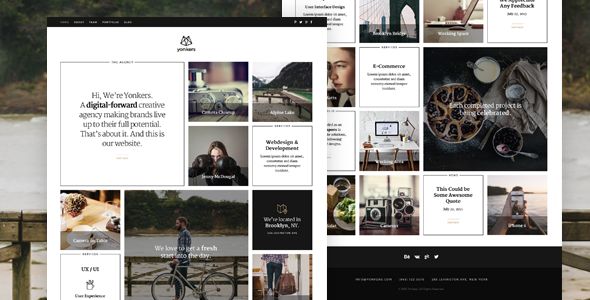
The promise is simple: a visually striking, modern, and easy-to-manage portfolio website for creatives, agencies, and photographers. We'll examine that promise from every angle, from the initial file download and server setup to the nitty-gritty of its code structure, performance overhead, and long-term customization potential. Let's get our hands dirty.
Part 1: The First Impression - Design, Feel, and Vibe
Before any code is examined, the first interaction is with the live demo. Aesthetically, Yonkers delivers on the "trendy" moniker. It embraces a clean, minimalist design punctuated by bold typography, generous whitespace, and slick, but not overpowering, animations. The use of asymmetric layouts and subtle parallax scrolling on some elements gives it a contemporary, high-end agency feel. This is not a template for a local plumber; it's squarely aimed at designers, photographers, and digital studios looking to project a sophisticated image.
The color palette is muted and professional, relying on shades of grey, black, and white, with a single accent color for calls-to-action and highlights. This is a smart choice, as it makes branding a simple matter of changing one or two color values in the backend rather than wrestling with a complex, multi-colored scheme. The typography choices are solid, typically pairing a bold, modern sans-serif for headings with a highly legible sans-serif for body copy. These are safe but effective choices that prioritize readability while maintaining a modern edge.
However, a critical eye reveals a heavy reliance on high-quality imagery. The demo looks spectacular because it's populated with professional, curated photographs and graphics. A client with amateur photos will find this template unforgiving. The minimalist design puts the content, especially the visuals, front and center. If the content is weak, the whole design falters. This is a crucial point to manage with a client; the template is a frame, not the painting itself.
Part 2: The Setup - A Step-by-Step Installation Guide
Getting a Joomla template from a ZIP file to a functioning website can be a minefield of dependencies and configuration errors. Yonkers, like many modern templates, offers two paths: the all-in-one Quickstart package and the manual installation. Your choice here is critical and depends entirely on your project's context.
Prerequisites: The Foundation
Before you even download the file, ensure your server environment is ready. At a minimum, you'll need:
- A clean web server (Apache or Nginx).
- PHP 7.4 or higher (PHP 8.x is recommended for performance and security).
- MySQL 5.6+ or MariaDB 10.1+.
- A fresh database for the Quickstart installation.
- Standard Joomla PHP extensions (e.g., `mysqli`, `xml`, `zip`, `gd`).
Do not attempt to install this on an outdated hosting plan with PHP 5.6. You're just asking for a cascade of errors.
Path A: The Quickstart Installation (Recommended for New Sites)
The Quickstart package is a full Joomla installation bundled with the template, all required extensions, and the demo content. It's the fastest way to replicate the live demo exactly.
Step 1: Prepare the Files
After purchasing and downloading, you'll get a package containing several folders. Find the `quickstart.zip` file. This is the one you need. Upload this single ZIP file to the root directory of your intended domain (e.g., `public_html`).Step 2: Unpack the Archive
Using your hosting control panel's File Manager or an SSH terminal, unzip the `quickstart.zip` file. This will extract the entire Joomla file structure into your root directory. Make sure hidden files like `.htaccess` are also extracted correctly.Step 3: The Joomla Installer
Navigate to your domain in a web browser. You will be greeted by the standard Joomla installation screen. The process is straightforward:- Configuration: Enter your site name, administrator email, username, and a strong password.
- Database: Provide the database name, username, and password for the clean database you created earlier. The table prefix can usually be left as is.
- Finalisation: This is the most important step. You will see an option to install sample data. You must select the sample data provided by the template. It might be labeled "Default English (GB) Sample Data" or something specific to "Yonkers." This step installs all the demo pages, modules, and content. Skipping it will give you a blank Joomla site with just the template's shell.
Step 4: Cleanup
Once the installation is complete, Joomla will prompt you to remove the `installation` folder. This is a critical security step. Click the button to remove it. You can now log into your Joomla administrator backend at `yourdomain.com/administrator`.Path B: The Manual Installation (For Existing Sites)
If you have an existing Joomla site with content you can't afford to lose, the manual installation is your only option. It's more involved and requires careful attention to detail.
Step 1: Install the Template
From the downloaded package, find the file named `tpl_yonkers.zip`. This is just the template file itself.- In your Joomla backend, navigate to System -> Install -> Extensions.
- Drag and drop the `tpl_yonkers.zip` file into the upload area.
- Once installed, go to System -> Site Templates.
- Select the checkbox next to Yonkers and click "Make Default".
Step 2: Install Required Extensions
Your site will look broken at this point because the template relies on a suite of extensions that are not yet installed. Go back to your downloaded package and look for a folder named `extensions` or `required_plugins`.Inside, you will likely find several ZIP files for components, modules, and plugins. The most important one will be SP Page Builder Pro, as this is the engine driving most of the page layouts. Install each of these extensions one by one using the same Joomla installer interface.
Step 3: The Hard Part - Recreating the Demo
This is the significant downside of the manual method. You have the tools, but not the structure. You will need to manually create pages in SP Page Builder, configure modules, assign them to template positions, and set up the menu items to match the demo. Some developers provide a `pages.json` file that you can import into SP Page Builder to get the demo layouts, which can be a huge time-saver. Check the documentation for this. If not, you are left to recreate the look and feel from scratch, which can be a painstaking process.Part 3: Under the Hood - A Technical Teardown
A pretty face is one thing; a robust and flexible architecture is another. Here's where we dissect Yonkers from a developer's standpoint.
The Core: Framework and Dependencies
Yonkers is built on the Helix Ultimate Framework. This is a common and powerful choice in the JoomShaper ecosystem. For a developer, this is good news. Helix is a mature framework with a wealth of features and a logical structure.
- Layout Builder: Helix provides a drag-and-drop layout manager in the template options. This allows you to manipulate the core module grid (e.g., changing a sidebar from the left to the right, or adjusting column widths) without writing a single line of code. It’s powerful for structural changes.
- Typography Control: It offers granular control over fonts, integrating with Google Fonts and allowing for custom font uploads.
- Presets: The ability to save different style configurations as "presets" is a huge workflow enhancement. You can create a light mode and a dark mode, or different color schemes for different sections of the site, and switch between them easily.
The primary dependency, as noted, is SP Page Builder Pro. Yonkers is, in essence, a highly stylized skin for SP Page Builder. The overwhelming majority of the content you see in the demo—the hero sections, the portfolio grids, the "about us" blocks—are built as Page Builder pages. This is a double-edged sword. It grants immense power to non-technical users for content management, but it also creates a tight coupling. If you ever decide to move away from SP Page Builder, migrating your content will be a significant undertaking. Your content is stored within the page builder's JSON structure, not as standard Joomla articles.
Code Quality and Customization
A quick inspection of the template's file structure reveals a reasonably clean setup. Helix Ultimate encourages good practices.
- SASS Files: The template includes the source SCSS files. This is a major plus for developers. Instead of fighting with a massive, compiled `template.css` file, you can make changes in the structured SASS partials (`_variables.scss`, `_typography.scss`, etc.) and recompile. The template options even include an SCSS compiler, so you don't need to set up a local build process if you don't want to.
- Template Overrides: The template uses the standard Joomla override system. The `html` folder within the template directory contains customized output for core components like `com_content` (articles) and modules. This is the correct way to modify Joomla's output without hacking the core. The overrides appear to be well-commented and focused on styling, not heavy logic changes.
- JavaScript: JS is a mixed bag. The core template JavaScript is clean and handles things like the mobile menu and back-to-top button. However, SP Page Builder and its addons bring a significant amount of their own JavaScript. On the demo, there are multiple jQuery-based libraries loaded. While they are minified, the sheer number of HTTP requests is a concern for performance. We'll touch on that next.
Performance Analysis
Out of the box, with the Quickstart installation, the performance is... adequate. It's not a featherweight template, and it won't win any speed tests without optimization. Running the demo through a performance analyzer reveals the usual suspects:
- Image Sizes: The demo uses high-resolution images that are not always optimized for the web or served in next-gen formats like WebP. This is the first and easiest thing to fix.
- HTTP Requests: A typical page loads numerous CSS and JS files from the template, Joomla core, Helix framework, SP Page Builder, and various addons. This creates a long request chain that can slow down initial rendering.
- Render-Blocking Resources: Much of the CSS and JS is loaded in the document ``, blocking the page from rendering until it's all downloaded and parsed.
The good news is that both Helix and Joomla offer tools to mitigate this. In the Helix template options, you can enable CSS and JS compression and concatenation. This will combine the multiple files into single, larger files, drastically reducing the number of HTTP requests. Joomla's native caching and a good third-party optimization extension (like JCH Optimize) are practically mandatory to get this template production-ready and scoring well on Core Web Vitals.
Part 4: Real-World Usage and Customization
So, you have it installed. How easy is it to make it your own?
The Template Options Panel
This is your command center, courtesy of the Helix Framework. It’s a powerful and mostly intuitive interface. Key areas include:
- Basic: Upload your logo, favicon, and manage basic site information.
- Layout: The aforementioned drag-and-drop layout builder for module positions.
- Presets: Your style and color management hub. You can adjust nearly every color, from the body background to link hover states.
- Typography: Full control over fonts and font sizes for body text and all heading levels (H1-H6).
- Custom Code: A dedicated area to add custom CSS, JavaScript, and tracking codes (like Google Analytics) without needing to edit the template files directly. This is essential for maintaining customizations through template updates.
Working with SP Page Builder
Most of your time will be spent here. Editing the demo content is as simple as navigating to a page on the front end (while logged in) and clicking the "Edit Page" button. This launches the front-end editor for SP Page Builder.
The experience is WYSIWYG. You can click on text to edit it, drag and drop elements to reorder them, and access the settings for each addon (e.g., an image carousel, a testimonial slider) to change content and behavior. The Yonkers template includes some custom styling for the standard SP Page Builder addons to make them match the template's aesthetic. This integration is seamless.
The challenge comes when you want to build a new page that doesn't follow an existing demo layout. You'll need a solid understanding of SP Page Builder's row/column system and its library of addons. While it's a powerful tool, there is a learning curve to creating complex, responsive layouts from scratch.
Managing the Portfolio
The portfolio is the template's centerpiece. It's typically handled in one of two ways: either as a dedicated portfolio component or by cleverly using native Joomla articles and categories. Yonkers opts for the latter, which is a lightweight and SEO-friendly approach. Each portfolio item is simply a Joomla article assigned to a "Portfolio" category. SP Page Builder is then used on a menu item (e.g., "Our Work") to create a view that pulls in these articles and displays them in a stylish grid using its "Article Scroller" or "Articles" addon. This is an elegant solution that leverages core Joomla functionality.
Part 5: Value, Support, and the GPL Advantage
Is Yonkers a good value? That depends on your needs. For a creative professional or a small agency that wants a high-end look without a custom design budget, it's an excellent choice. The combination of a strong design, a powerful framework, and a leading page builder provides a solid foundation that can be launched relatively quickly.
The value proposition is especially compelling when sourced from a GPL club like gplpal. The GNU General Public License (GPL) allows developers to use, modify, and distribute the software freely. This is a massive benefit for developers who need to test templates on staging servers or use them across multiple personal or client projects without purchasing a new license for every single installation. While this model often means forgoing direct developer support, the trade-off in cost and freedom is often worth it for experienced users who can solve problems independently.
Of course, the web development world is vast. While Yonkers is a strong contender in the Joomla space, it's always wise to survey the landscape. Developers working on multiple platforms often look at the massive ecosystem of Free download WordPress themes to compare design trends and feature sets. Seeing how different content management systems approach similar design problems can provide valuable perspective and inspiration.
The Final Verdict: A Trendy Tool for the Right Job
After a thorough review, it's clear that Yonkers is a high-quality, well-thought-out Joomla template. It successfully delivers on its promise of a trendy, modern portfolio. It's not a magic bullet, but it's a sharp tool.
Pros:
- Stunning Visual Design: The aesthetic is clean, modern, and professional. It looks expensive.
- Powerful Foundation: Built on the mature and flexible Helix Ultimate Framework.
- Quickstart is a Time-Saver: The ability to perfectly replicate the demo in minutes is a huge asset for new projects.
- Excellent Customization Options: The combination of Helix template options and SP Page Builder provides deep control without needing to code.
- Developer-Friendly: The inclusion of SASS files and a clean override structure is a welcome sight for those who need to dig deeper.
Cons:
- Heavy Dependency on SP Page Builder: This creates a lock-in effect. Migrating away would be difficult.
- Performance Requires Tuning: The out-of-the-box performance is mediocre and requires optimization (caching, asset compression, image optimization) for production use.
- Design is Unforgiving: The minimalist style relies heavily on high-quality content. Poor photography will ruin the look.
- Learning Curve for Complex Layouts: While editing existing pages is easy, creating new, complex designs from scratch in SP Page Builder requires practice.
Who is this template for? It's a perfect match for freelance web developers building sites for creative clients, small digital agencies, photographers, and designers. If you're comfortable within the Joomla and SP Page Builder ecosystem and your primary goal is to deliver a visually impressive portfolio site quickly, Yonkers is one of the best options available.
Who should avoid it? If your project requires an ultra-lightweight, blazing-fast site with minimal dependencies, this isn't it. Similarly, if your content is not visual-heavy or if you have a philosophical aversion to page builders, you should look for a more traditional, article-based template. For most portfolio use cases, however, Yonkers hits the mark with precision and style.