Loveme Elementor Template Kit: A Developer's Deep Dive and No-N
-
Loveme Elementor Template Kit: A Developer's Deep Dive and No-Nonsense Guide
The wedding industry is a curious mix of high-emotion aesthetics and hard-nosed business logistics. Building a website for a wedding or a wedding planner demands a similar blend: it needs to be visually stunning, emotionally resonant, and functionally bulletproof. This is the tightrope that pre-built solutions attempt to walk. Today, we're putting one such solution under the microscope: the Loveme - Wedding & Wedding Planner Elementor Template Kit. This isn't a surface-level overview; it's a technical teardown from a developer's perspective, designed to show you what works, what doesn't, and exactly how to get it running from a zipped file to a live website.
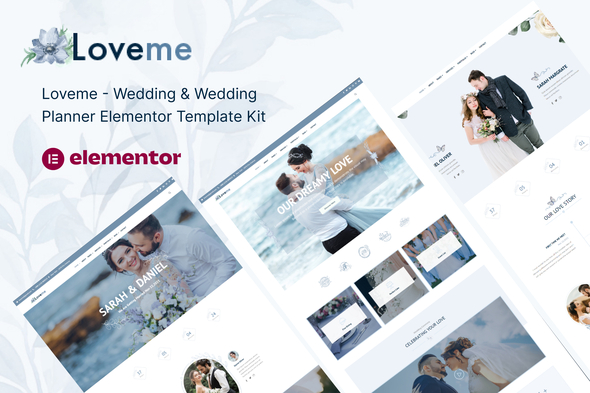
Elementor Template Kits are a dime a dozen. They promise a one-click website, a beautiful design without the hassle of custom coding. The reality is often a messy affair of broken layouts, missing dependencies, and a frustrating amount of post-import cleanup. My goal here is to dissect Loveme, assess its architecture, and provide a real-world installation guide that anticipates the common pitfalls. We'll look at its design philosophy, its reliance on Elementor Pro, its responsiveness, and ultimately, determine who this kit is truly for: the DIY couple, the freelance planner, or the web development agency looking for a reliable base.
Part 1: The Review - Design, Structure, and Dependencies
First Impressions: The Aesthetic and User Experience
Unzipping the kit and importing the demo content, the first impression of Loveme is one of clean, contemporary elegance. The design language avoids the overly frilly or rustic clichés that plague many wedding themes. It leans into a more high-end, editorial feel with a generous use of white space, a sophisticated serif font for headings, and a clean sans-serif for body copy. The default color palette is muted and tasteful—blush pinks, soft grays, and off-whites—which serves as an excellent neutral base that can be easily adapted to a specific couple's wedding colors.
The user experience (UX) is straightforward and logical. The navigation is clear, and the page layouts guide the user's eye effectively. Call-to-action buttons, particularly for the RSVP, are well-placed and visually distinct without being obnoxious. This is a design that respects the user and doesn't try to bombard them with animations or distracting elements. It understands its purpose: to convey information beautifully and capture responses efficiently.
Template Breakdown: What’s in the Box?
A template kit is only as good as the sum of its parts. Loveme claims to be a comprehensive solution. Let's break down the key templates provided:
- Home Page: Multiple variations are included, which is a strong plus. They follow a similar structure: a full-screen hero image, an "Our Story" section, event details, a gallery preview, and an RSVP call-to-action. The layouts are well-composed and provide a solid narrative flow.
- About Us/Our Story: This template provides a more detailed timeline or narrative section. It's well-designed, using alternating image and text blocks to keep the layout from becoming monotonous.
- Our Team (for Planners): A crucial page for a wedding planner's site. The template is simple but effective, with profiles for team members. It’s a standard section that does its job without any particular flair.
- Services: Another planner-centric page. It uses icon boxes and brief descriptions to outline service packages (e.g., Full Planning, Day-of Coordination). It's functional but might require some heavy customization to fit a planner's unique offerings.
- Photo Gallery: This is a critical component of any wedding site. The template uses Elementor's gallery widget, creating a clean grid layout. The functionality is entirely dependent on the widget itself, offering basic lightbox capabilities. It's decent, but a professional photographer or a couple with a large number of photos might find it limiting compared to dedicated gallery plugins.
- RSVP Page: This is arguably the most important functional piece. The template provides a page with a simple form built with Elementor Pro's Form widget. It includes fields for Name, Email, Attendance Status, and a message. It's a solid starting point, but it's not a true "RSVP system." You won't get guest list management or meal choice tracking without significant modification or integration with a third-party service.
- Blog & Single Post: The kit provides styling for the blog archive and single post pages. The design is consistent with the rest of the site—clean and readable. This is often an afterthought in template kits, so its inclusion here is a sign of a more complete package.
- Header & Footer: Crucially, the kit includes pre-designed global Header and Footer templates. This is a massive time-saver and ensures site-wide consistency.
Dependencies and the "Pro" Question
Here's the most critical technical consideration: Loveme requires Elementor Pro. This is not explicitly a negative, as Elementor Pro unlocks essential features like the theme builder (for headers/footers), the form widget (for the RSVP), and custom positioning. However, it's a deal-breaker for anyone hoping to use this kit with the free version of Elementor. The dependency is hard-coded into the templates.
Beyond Elementor Pro, the kit I reviewed had minimal third-party plugin dependencies, which is a huge benefit. Over-reliance on a mishmash of free plugins for sliders, icons, and forms is a common source of bloat, security vulnerabilities, and maintenance headaches. By keeping the dependencies lean and contained mostly within the Elementor Pro ecosystem, Loveme presents a more stable and professional foundation. The trade-off is clear: you're paying for the simplicity and stability of the Pro ecosystem.
Responsiveness and Mobile Experience
I tested the imported templates across standard breakpoints: desktop, tablet, and mobile. The results were largely positive. The layouts reflow intelligently, columns stack correctly, and navigation collapses into a clean mobile menu. The font sizes adjust appropriately, ensuring readability on smaller screens.
However, I did notice a couple of minor issues that a developer would need to clean up. Some sections with complex background images and foreground text required manual adjustments to padding on mobile to prevent text from crashing into the edges of the screen. The multi-column layouts on the "Services" page felt a bit cramped on smaller tablet views and could benefit from stacking earlier. These are not major flaws but are typical of the small, manual tweaks that are almost always necessary when using a pre-built kit. It's about 95% of the way there, but that last 5% of polish is what separates a template from a truly custom-finished site.
Part 2: The Installation Guide - A Developer's Walkthrough
Importing an Elementor Template Kit should be simple, but overlooking a step can lead to a cascade of issues. Follow this guide precisely for a clean setup.
Step 0: Prerequisites - The Clean Workshop
Before you even download the file, ensure your environment is ready. A clean workshop prevents contamination.
- A Clean WordPress Installation: Do not attempt to install this on an existing website cluttered with other themes and plugins. Start with a fresh install of the latest WordPress version.
- PHP Version & Memory Limit: Ensure your hosting environment is running a modern version of PHP (7.4 or higher). Critically, check your
WP_MEMORY_LIMIT. I recommend at least 256M, preferably 512M. Importing media and processing templates can be memory-intensive, and hitting the limit is a common source of failed imports. - Install Core Plugins: Install and activate Elementor (Free) and Elementor Pro. Do not proceed without both being active. You will also need to activate your Elementor Pro license to access its features.
Step 1: Downloading and Preparing the Kit
Download the "loveme-wedding-planner-elementor-template-kit.zip" file from your source. Do not upload this zip file directly to WordPress. This is the most common beginner mistake. Unzip the file on your local machine first. Inside, you will find the actual template kit zip file (e.g., `loveme_template_kit.zip`), documentation, and possibly a folder with the individual template JSON files. The primary file you need is the main kit zip file.
Step 2: The Import Process
With your environment prepared, the import process is straightforward.
- Navigate to your WordPress Dashboard.
- Go to Templates > Kit Library.
- In the top-right corner, click the "Import Kit" button.
- Drag and drop the `loveme_template_kit.zip` file into the uploader window.
- Elementor will now scan the kit. It will show you a list of required plugins. Since you already installed Elementor Pro, this step should show green checkmarks. If it flags any other plugins, you have the option to install them from this screen. For Loveme, this is typically not an issue.
- The importer will then display all the templates and global settings included in the kit. By default, everything is selected. For a first-time setup, leave everything checked and click "Import".
- The process will take a few minutes as it imports templates, media, and site settings. Do not close this window.
- Once complete, you will see a confirmation screen. Your kit is now installed.
Step 3: The Critical Post-Import Checklist
Your site is not finished after the import. This is where the real work begins. The kit is a foundation, not a finished house.
- Check Global Settings: Go to Elementor > Settings and ensure the "Disable Default Colors" and "Disable Default Fonts" checkboxes are ticked. This allows the kit's global styles to take full control.
- Review Global Styles: From any Elementor editor window, click the hamburger menu (top-left) and go to "Site Settings". Meticulously check the Global Colors and Global Fonts. The Loveme kit should have populated these with its primary, secondary, and accent colors/fonts. This is your command center for changing the site's look and feel. Change a color here, and it updates everywhere. Verify this is working as expected.
- Assign Header and Footer: The templates for your header and footer have been imported, but WordPress doesn't know to use them yet.
- Go to Templates > Theme Builder.
- You should see the imported Header and Footer. Click "Edit Conditions" for the header.
- Add a display condition to "Include" on the "Entire Site". Save and close.
- Repeat the exact same process for the footer. Your site-wide header and footer will now appear.
- Set Your Homepage: WordPress still thinks your homepage is the default blog feed.
- Go to Settings > Reading in the WordPress dashboard.
- Under "Your homepage displays", select "A static page".
- For the "Homepage" dropdown, select the imported "Home" page.
- For the "Posts page" dropdown, select the imported "Blog" page. Save changes.
- Configure and Test Forms: The RSVP form will not work out of the box.
- Edit the RSVP page with Elementor. Click on the form widget.
- Under "Actions After Submit", you will see "Email". Click on the "Email" tab that appears below it.
- Configure the "To" field with the email address that should receive the RSVPs. Customize the "Subject" line to something useful, like "New RSVP from [field id='name']".
- Crucially: Most shared hosting has poor email deliverability. I strongly recommend installing an SMTP plugin (like WP Mail SMTP) to configure your site to send email through a dedicated service (like SendGrid, Mailgun, or even your Gmail account). This ensures RSVPs don't end up in spam folders. Send a test submission to verify it works.
Part 3: Customization and Real-World Application
Working with the Templates
Now that the site is structurally sound, customization begins. The true quality of a kit is revealed when you try to change things. I found the Loveme templates to be well-constructed. The developers used a logical hierarchy of sections, columns, and widgets. There was minimal use of confusing negative margins or absolute positioning, which often makes templates a nightmare to edit for non-developers.
Replacing content is as simple as clicking on any text or image widget and swapping in your own. The use of Global Styles is a significant advantage. If you want to change the main heading font across the entire site, you only need to change it once in the Site Settings, and the change will propagate everywhere. This is a hallmark of a professionally built kit.
Extending the Kit: Creating a New Page
No kit includes every page you might need. Let's say you need a "Travel & Accommodations" page. The best approach is to maintain design consistency.
- Create a new page in WordPress and edit it with Elementor.
- Instead of building from scratch, click the grey folder icon to open the template library.
- Go to the "My Templates" tab. Find a page with a similar structure, like the "About Us" page. Insert it.
- Now, you have the correct structure, fonts, and colors. Simply delete the sections you don't need and modify the remaining ones with your travel information content. You can save new sections you create as global widgets or templates to reuse them elsewhere.
Performance Considerations
Out of the box, the site is reasonably fast due to the lean dependencies. However, wedding websites are image-heavy. Performance can degrade quickly if not managed.
- Image Optimization: Before uploading any of your personal photos, resize them. A 4000px wide image is unnecessary for a web gallery. Resize images to a maximum width of around 1920px. Then, run them through an image compression tool like TinyPNG or use a WordPress plugin like Smush or ShortPixel to compress them on upload. This is the single most important performance optimization you can make.
- Caching: Install a caching plugin. For beginners, WP Rocket (premium) is incredibly easy and effective. For those on a budget, free options like W3 Total Cache or WP Super Cache are powerful, though they require more configuration. Caching creates static HTML versions of your pages, so the server doesn't have to build them from scratch for every single visitor, dramatically speeding up load times.
The Verdict: Is Loveme a Match?
After a thorough technical review and setup, the Loveme Elementor Template Kit proves to be a well-crafted, professional-grade product. It's not a magical one-click solution—no template kit is. It's a powerful accelerator that provides a beautifully designed and structurally sound foundation for a wedding or wedding planner website.
Pros:
- Sophisticated, High-End Design: It avoids common wedding clichés and presents a clean, elegant aesthetic.
- Well-Structured Templates: The layouts are built logically in Elementor, making them easy to edit and customize.
- Excellent Use of Global Styles: The kit properly leverages Elementor's Site Settings, making site-wide design changes simple and efficient.
- Lean Dependencies: By relying primarily on the Elementor Pro ecosystem, it avoids the bloat and security risks of multiple third-party plugins.
- Comprehensive Kit: The inclusion of templates for headers, footers, blog pages, and multiple homepage variations makes it a fairly complete package.
Cons:
- Requires Elementor Pro: This is a hard dependency and an added cost that users must be aware of from the start.
- Generic RSVP Form: The form is a simple contact form. It lacks advanced RSVP features like guest list management or +1 tracking, which might be needed for larger weddings.
- Requires Post-Import Polish: As with any kit, you will need to spend time on post-import configuration and mobile tweaking to get it perfect.
Who is this for?
This kit is ideal for three specific groups:
- The Tech-Savvy DIY Couple: A couple who is comfortable with WordPress and willing to invest in Elementor Pro will find this kit saves them dozens of hours of design work.
- The Freelance Wedding Planner: For a planner who needs a professional online presence but doesn't have the budget for a fully custom site, this is a perfect solution. It looks premium and is easy to manage.
- Web Developers & Agencies: As a starting point for client projects, this kit is excellent. It allows a developer to deliver a beautiful, functional site quickly, leaving more time and budget for custom features and integrations.
Ultimately, the value of a template kit lies in the time it saves. Loveme succeeds by providing a robust and elegant framework that handles the majority of the heavy lifting. If you're building websites regularly, sourcing high-quality assets from a trusted provider like gplpal is a smart business decision that streamlines your workflow. For those exploring different options or working on passion projects, browsing a wide selection of Free download WordPress themes can also yield fantastic results. Loveme, however, stands out as a polished, professional tool that, with a bit of the technical diligence outlined in this guide, can be used to build a truly beautiful and effective wedding website.